JavaScript Objects
Objective
Students will learn about JavaScript Objects.
Real Life Objects, Properties, and Methods
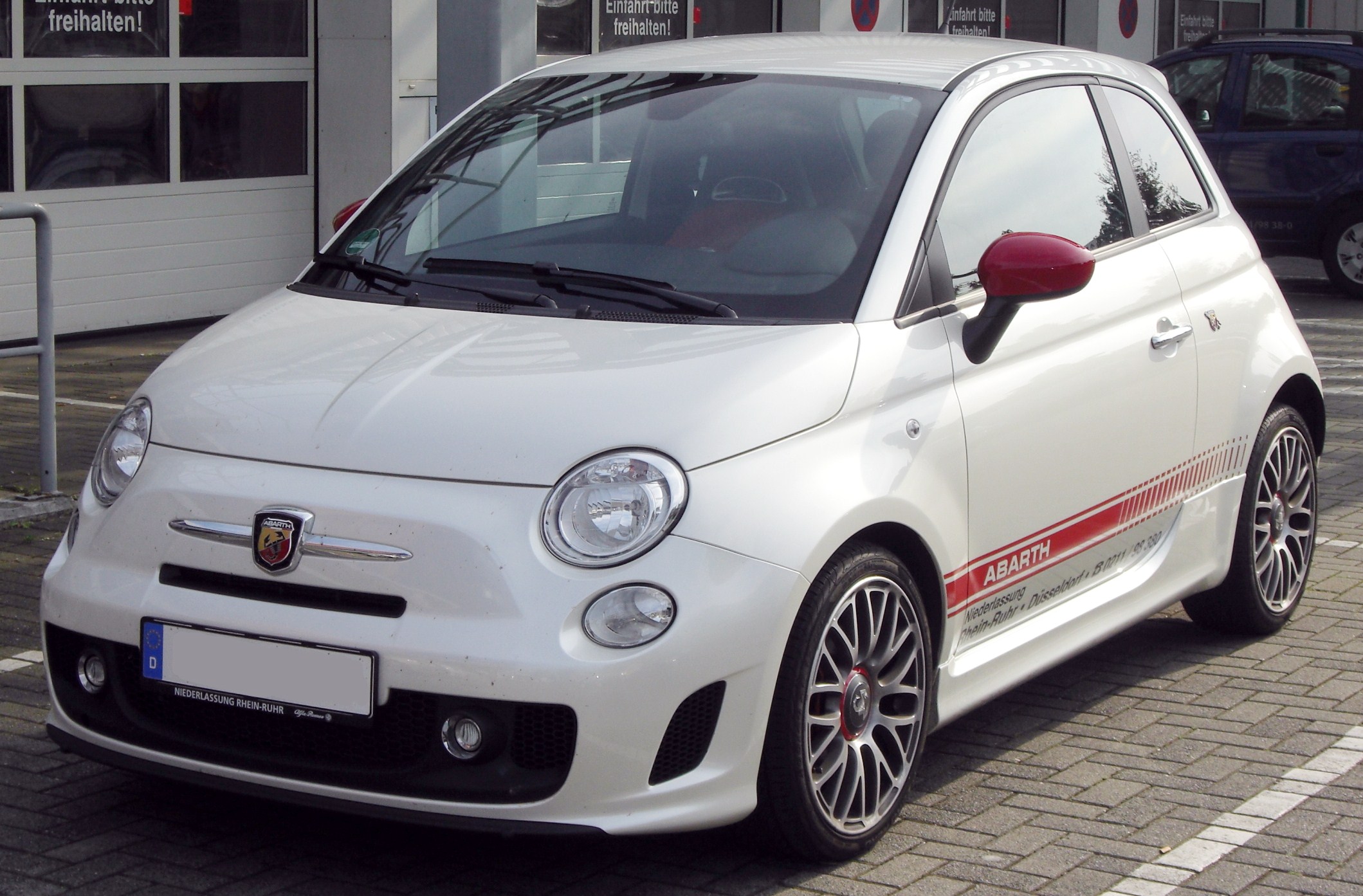
In real life, a car is an object.
A car has properties like weight and colour, and methods like start and stop.
| Object | Properties | Methods |
|---|---|---|
| Car | carname = Fiat carmodel = 500 carweight = 850kg carcolor = white |
car.start() car.drive() car.brake() car.stop() |
All cars have the same properties, but the property values differ from car to car. All cars have the same methods, but the methods are performed at different times.
JavaScript Objects
You have already learned that JavaScript variables are containers for data values.
var car = "Toyota";Objects are variables too. But objects can contain many values.
const car = {type:"Toyota", model:"500", color:"white"};A const is a variable, similar to var, used to declare an object.
The code to access the value of a property is simply objectName.propertyName
var brandOfCar = car.type;
var colourOfCar = car.color;
Task 1 – Object Definition
In this interactive version, explore the car object below.
// myScript.js
const car = {type:"Audi", model:"Q3", color:"blue"};
document.getElementById("brand").innerHTML = car.type;
document.getElementById("model").innerHTML = car.model;
document.getElementById("color").innerHTML = car.color;
Task 2 – Object Methods
Objects can also have methods. Methods are actions that can be performed on objects. Methods are stored in properties as function definitions.
// Modified myScript.js
const car = {
  type:"Audi",
  model:"Q3",
  color:"blue",
  start: function() {
    document.getElementById("status").innerHTML = "started!";
  },
  stop: function() {
    document.getElementById("status").innerHTML = "stopped!";
  }
};
function startCar() {
  car.start();
}
function stopCar() {
  car.stop();
}
Interactive Car Object
Modify the car object properties and see changes in real-time.
Number of Properties: 3
Try These Questions!
Use the interactive sections above to answer the following questions.
Question 1: What is the initial color of the car in Task 1?
Question 2: Change the model to "A4" using the interactive section. What is the new model?
Question 3: Add a "year" property with value "2020". What is the new number of properties?
Question 4: Click "Start Engine" in Task 2. What text is displayed?
Question 5: After starting, click "Stop Engine". What text is now displayed?